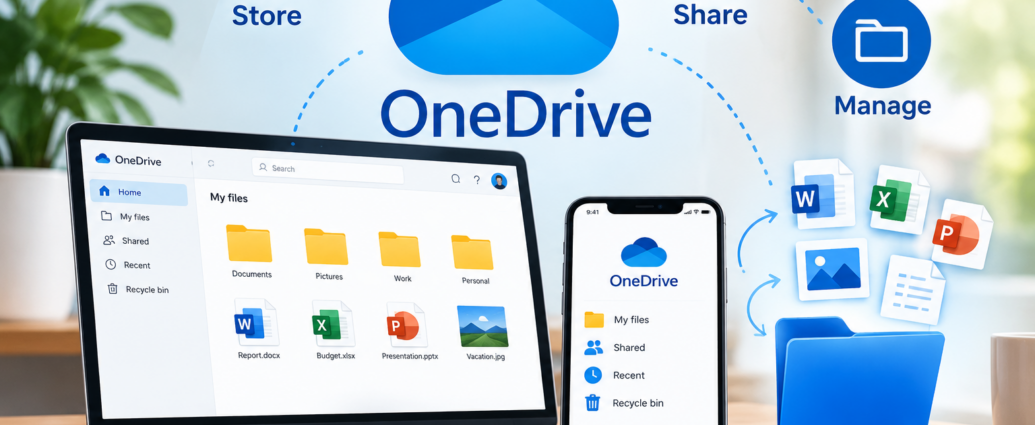
Microsoft OneDrive, which is a cloud storage service, is a repository for your files where you can store, access, and share files with others online. It enables businesses, students, and individuals to manage their paperwork, photos, videos, and other files in a consolidated central location. Users are not limited to a computer or USB drive to access the files; they can be shared to compatible devices with an internet connection.
OneDrive also provides valuable features like file synchronisation, sharing permissions, and integration with Microsoft Office applications. Learning about how OneDrive functions can help you manage your digital files better and access critical data whenever you need it.
What Is OneDrive and How Does It Work?
OneDrive is a cloud storage service developed by Microsoft for users to store files in the cloud and access them on supported devices. OneDrive files can be accessed via a web browser, desktop application, or mobile app.
Once you save a file to your OneDrive folder, it can sync to your cloud account. This allows for easier access to the most recent version of a document from another associated device.
OneDrive can be used for personal file storage, school assignments, documents for the office, and business collaboration. Storage space and features will vary depending on the Microsoft account and subscription.
How Can You Store Files in OneDrive?
1. Put Documents and Photos on a Server.
OneDrive enables users to upload documents, photos, videos, and other files that are supported. Files can be uploaded via the OneDrive website or via the application on an appropriate device.
Filing files in folders helps to locate information later. For instance, students can establish separate folders for topics and professionals can arrange documents by project or client.
2. Access Files From Different Devices
OneDrive enables users to access their saved files from their computer, tablet, and smartphone. Once signed in to the correct Microsoft account, the supported files can be opened without having to manually move them from one device to another.
This feature is helpful when working away from the main computer.
3. Keep Files Synchronized
File synchronization helps to ensure that changes are synchronized between connected devices. If you edit a supported file and the synchronization is successful, the updated file is available on OneDrive.
But syncing is not a full backup. Users should monitor the synchronization status and take extra backups of files that are of particular importance.
How Can You Share Files Using OneDrive?
1. Share documents using links
Users can share files and folders by creating links on OneDrive. These links can be shared with colleagues, friends, classmates, or clients rather than sending large files in emails.
You can specify who you want to share with if you have access to this feature on your account.
2. Control Access Permissions
Permissions allow you to restrict other users’ access to files. Depending on the options available, you can give recipients view or edit access to the documents.
Share files with those who should have access to them when they contain sensitive information. Don’t establish links if the document is private or confidential.
3. Share with Other Users
OneDrive facilitates teamwork between compatible Microsoft apps, such as Word, Excel, and PowerPoint. When access rights and settings of an application are configured, multiple users can work on the same document.
This allows people to work in a team to edit a document, instead of sending multiple versions of a document back and forth via email.
How Can You Manage Files More Efficiently in OneDrive?
1. Organize Files Into Folders
A well-structured folder system makes it easy to find documents. Files can be sorted by date, project, subject, department, and/or document type.
Organize your storage with descriptive folder names and consistent naming.
2. Use Search to Find Documents
If you have a lot of files, it’s tedious to search manually through folders. OneDrive offers a search feature to help users find files by name and other searchable data.
Meaningful file names increase the likelihood of finding the documents quickly.
3. Save Space by Using Files On-Demand
On supported systems, the OneDrive desktop app supports Files On-Demand. With this feature, you can view cloud files within File Explorer without having to download all of the files.
When necessary, files can be downloaded, which can save local storage space. Depends on the device, OS, and settings.
What is the Primary Value in Using OneDrive?
OneDrive has some features that are beneficial for personal and work file management.
- Convenient access: Open files from compatible devices after signing in.
- Easy sharing: Send links rather than continually attaching documents.
- Improved organisation: File documents in folders and use search tools.
- Collaboration: Collaborate with others in supported Microsoft Office documents.
- Synchronization: Stay in sync with files on connected devices.
- Storage flexibility: Use cloud storage to eliminate the need to store all files locally.
These advantages can enhance the convenience and efficiency of daily digital activities and help maintain a more structured workflow.
Is OneDrive Safe for Storing Important Files?
OneDrive also provides security measures to help safeguard the information stored within it, and users must take precautions to ensure that their information is properly secured.
1. Protect Your Microsoft Account
You should use a strong and unique password and multifactor authentication, if available. These measures minimize the risk of unauthorised access.
2. Review Sharing Settings
Review the permissions for shared files and delete unnecessary ones. Take special care when sharing business documents or personal information.
3. Understand Recovery Options
You can recover files with features like the OneDrive Recycle Bin, and if you’re eligible for more file recovery options, you might have them. These can be used to recover some deleted or modified files during the specified time range.
There are limits to recovery, though. Keep separate backup copies of critical data and examine your organization’s data protection needs.
How Can Businesses and Students Benefit From OneDrive?
1. Benefits for Businesses
OneDrive is where businesses store their project files, share their reports, and collaborate on files. Microsoft 365 integration can enable workflows with Outlook, Word, Excel, and other applications.
Organizations should have appropriate access controls and adhere to their data protection policies.
2. Benefits for Students
Students can store assignments, notes, presentations, and study materials in OneDrive. By accessing the cloud, they can then work on supported devices and share documents with classmates and teachers.
It is easier to keep academics organized by having files organized by subject and semester.
Conclusion
OneDrive is a useful cloud storage option for individuals who wish to store, share, and manage their files from a central location. It integrates and synchronizes, facilitates collaboration and search, and enables sharing, making everyday digital activities easier.
From organizing school assignments to personal photos to business files, OneDrive has you covered to keep your files organized and accessible. To maximize the use of the service, organize files neatly, review sharing settings, secure your account, and keep extra backups of vital content.
Frequently Asked Questions (FAQs)
1. What is OneDrive for?
Store and access files online, share and collaborate with others on OneDrive.
2. Is OneDrive free to use?
Yes, with eligible personal accounts, Microsoft provides a free storage plan on OneDrive. More storage and some functions might require a paid subscription to Microsoft 365.
3. Is there a way to access my OneDrive from my phone?
Yes, you can access OneDrive using its mobile application or a supported Web Browser on your cell phone.
4. May I share files on OneDrive with other people?
Of course, you can share folders and files via links or supported sharing options. The permissions granted are dependent on your account and settings.
5. Does OneDrive Automatically Save Files?
Synchronizing of files is automatic for files in a correctly configured OneDrive folder. But files that are not in the OneDrive folder might need to be uploaded or moved into it.
6. Is OneDrive Secure for People Records?
While OneDrive offers security, be sure to keep your account secure, share appropriately, and avoid sharing sensitive files publicly.
8. OneDrive vs a USB Drive: What’s the Difference?
OneDrive is a cloud-based storage service, while a USB drive. While OneDrive offers online access and synchronization, a USB drive can be helpful when transferring files offline or for extra backups.